# Navigation
A nav is a freestyle structure for menus — headers, footers, sidebars, the chrome. It composes links; it does not own your URLs.
## Overview
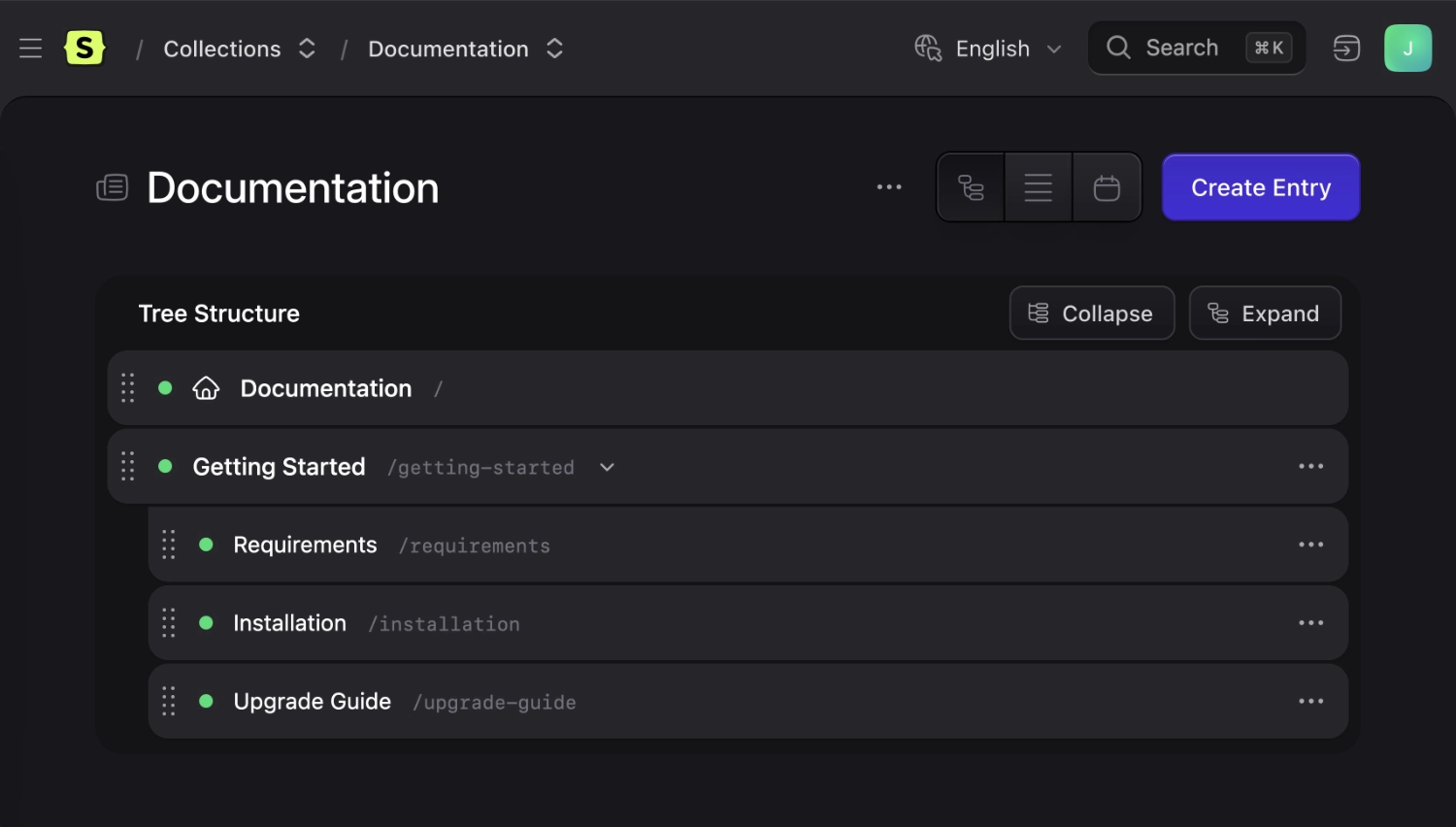
Need a header, footer, or mega-menu? That's a **nav**. Under the hood it's a [structure](/structures.md) — same tree UI — but the tree's job is composition, not URL ownership.
Referenced entries keep the URLs defined by their collection. You can mix entry links, hardcoded URLs, and text-only nodes, and you can place the same entry more than once.
Not sure whether you want a nav or a structured collection? Start with [Structures](/structures.md) — that's the decision page.
:::watch https://www.youtube.com/embed/POgIsLeWGGQ
Watch how to build a simple nav
:::
## Storage
Navs are stored in `content/navigation`. Each gets its own YAML file whose handle matches its filename.
The tree itself lives separately in `content/trees/navigation`.
``` files theme:serendipity-light
content/
navigation/
header.yaml
footer.yaml
trees/
navigation/
header.yaml
footer.yaml
```
``` yaml
# content/navigation/footer.yaml
title: Footer
max_depth: 3
collections:
- pages
- posts
- documents
```
## Templating
Loop a nav with the [nav tag](/tags/nav.md).
::tabs
::tab antlers
```antlers
```
::
Within the tag pair you get fields from that nav item — the branch itself or the referenced entry. See [blueprints and data](#blueprints-and-data) below.
## Collections
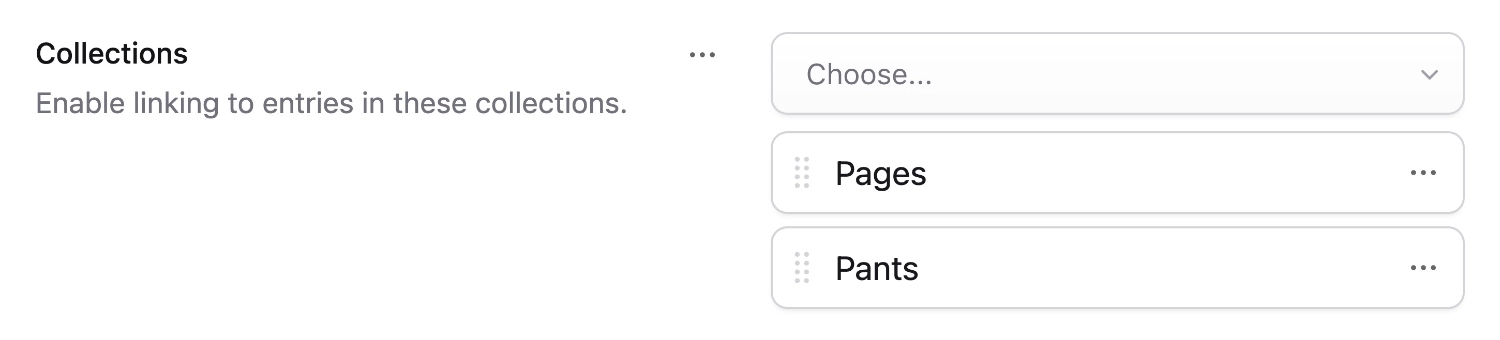
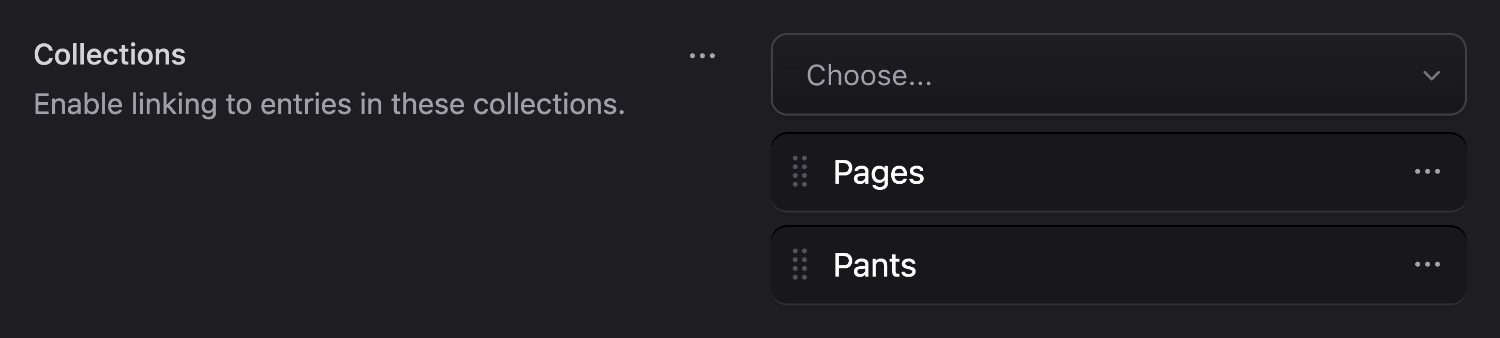
Your navigation tree _may_ contain references to entries. The Control Panel's entry selector shows entries across all collections by default. Narrow which collections appear in the nav's config.
If you want to put pants in your navs, you can.
## Blueprints and data
Out of the box, nav items are fairly light. Standard items get a URL and title; entry references can override the title.
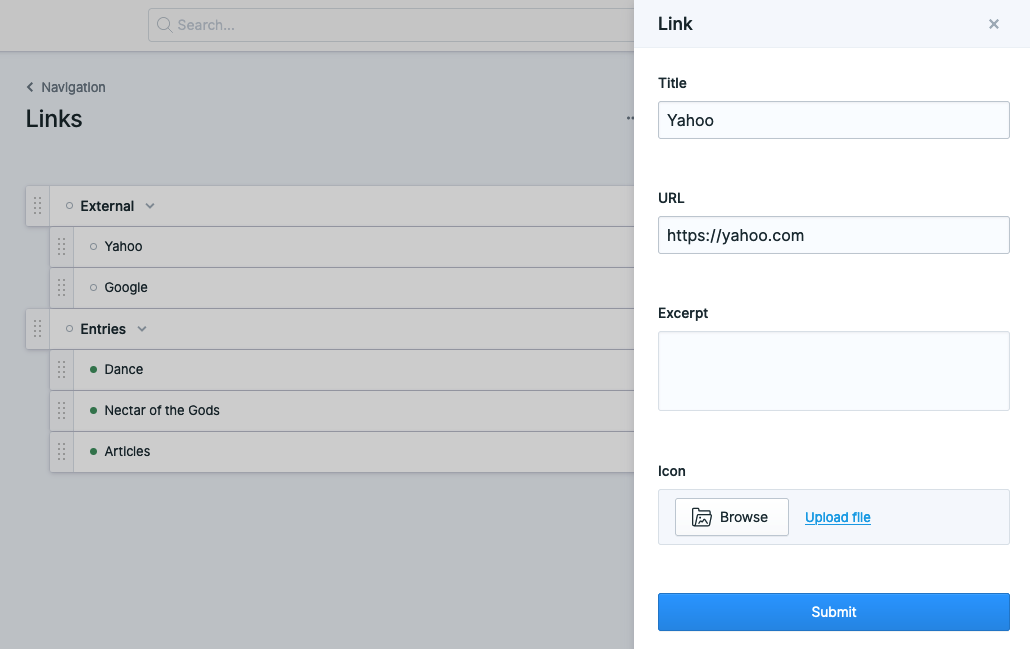
Want more fields? Add them to the nav's blueprint. They show up in the editor pane.
The excerpt and icon fields have been added
Data saves under a `data` key on the tree branch.
``` yaml
-
title: My page
url: /my-page
data:
excerpt: This is my page
icon: page.svg
```
For entry references, fields on the nav blueprint override the entry's fields for that branch. Useful when you intentionally want a different title/excerpt in the menu. Match the entry's fieldtype — a [reusable field](/blueprints.md#reusable-fields) is the clean way.
## Localization
On a [multi-site](/multi-site.md) install you can have a different tree per site. See [localizing navs](/tips/localizing-navigation.md).