# Command Palette
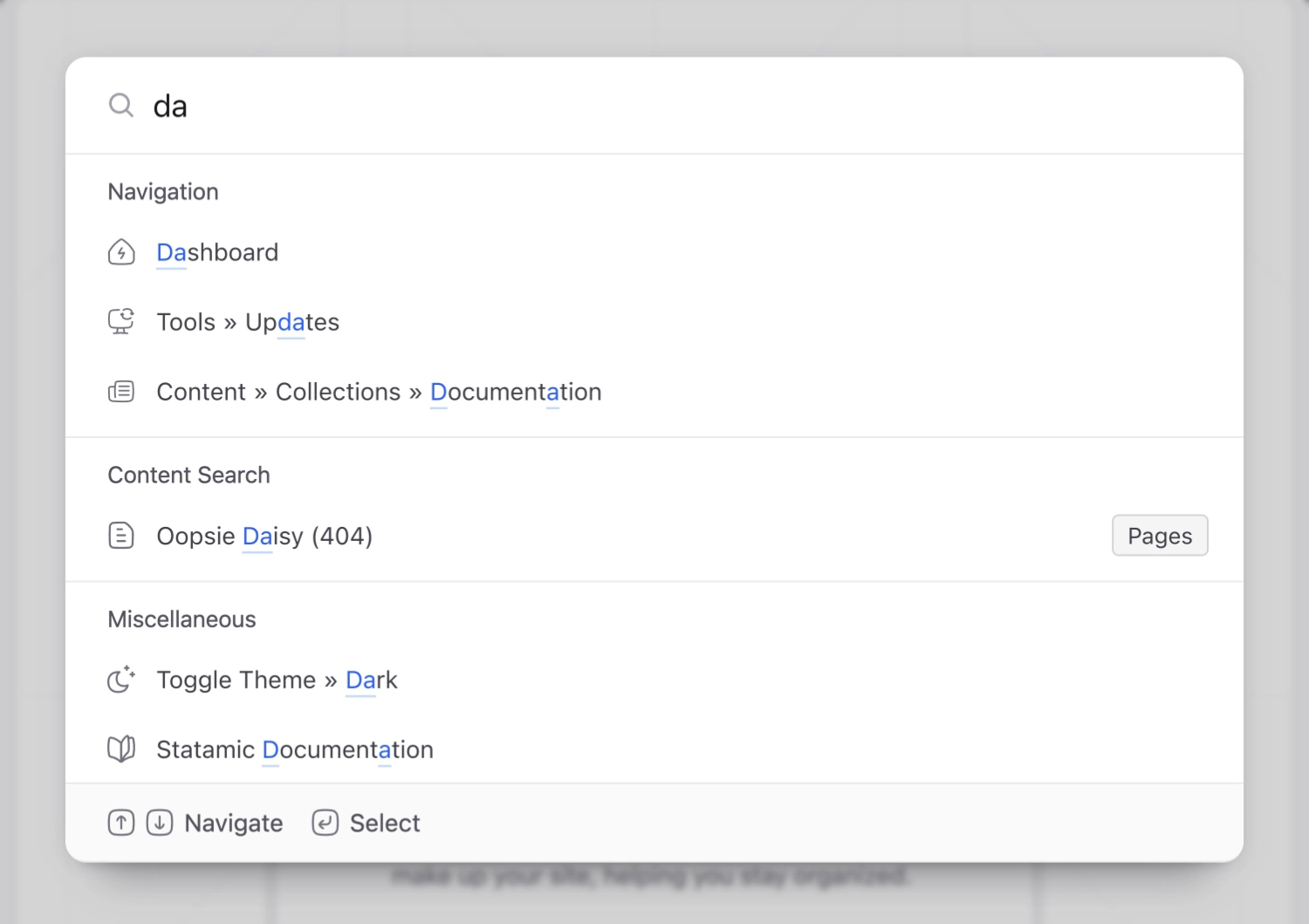
The command palette provides handy access to many pages and actions in the Control Panel without having to leave your keyboard.
Make friends with the `⌘K` shortcut 😎
Out of the box, it provides things like:
- Content search
- Control panel navigation
- Recently visited pages
- Intelligent page-specific and contextually relevant actions
- Links to relevant documentation
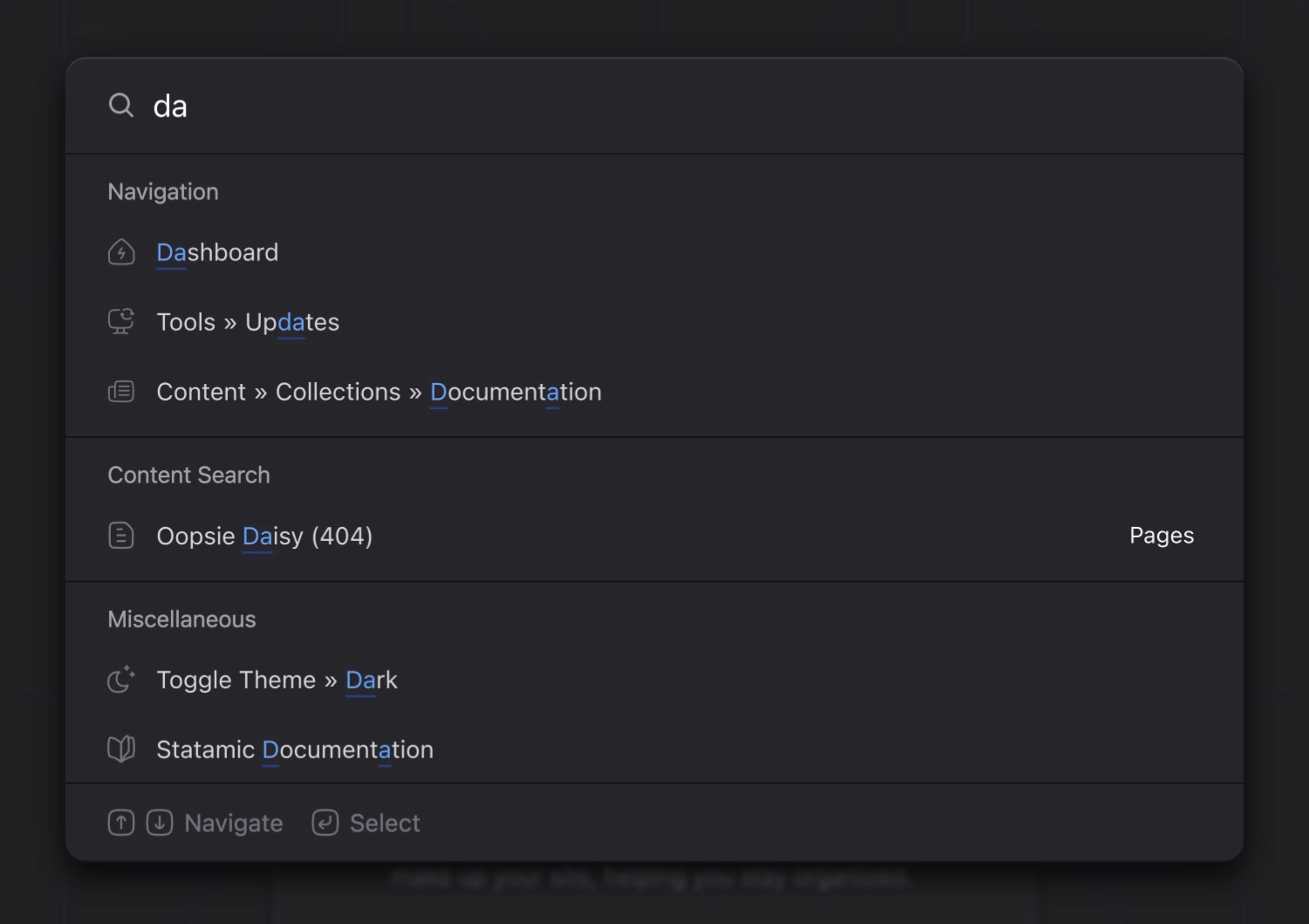
- Access to user preferences, light/dark mode, etc.
## Extending the Command Palette
If you're [extending the CP nav](/extending/cp-navigation.md), the command palette will automagically populate itself with those nav items 🎉
However, you may find yourself in a situation where you need to add more custom items to the command palette. You can do this in a variety of ways...
### PHP
If you wish to add basic links from PHP, simply add the following to a service provider, or to a controller for page-specific links:
```php
use Statamic\Facades\CommandPalette;
CommandPalette::add(
text: 'Staff Calendar'
url: '/custom-laravel-route',
icon: 'calendar',
);
```
#### Advanced Link Example
You can also pass an array to `text` if you want to use the same arrow conventions Statamic uses throughout the command palette (ie. `Search » Ancient » Hotbot`).
Or maybe you want to configure whether to `openNewTab`, or even disable `trackRecent` to prevent it from showing up in recent items, etc.
```php
use Statamic\Facades\CommandPalette;
CommandPalette::add(
text: ['Search', 'Ancient', 'Hotbot'],
url: 'https://hotbot.com',
icon: 'sexy-robot',
openNewTab: true,
trackRecent: false,
);
```
### JavaScript
JavaScript can also be a great place to add page-specific links, or even contextually relevant actions that might require JS logic.
Parameter-wise, the JS API mostly mirrors the parameter set of the PHP API, with a few key differences and additions:
1. The `add()` method is available via the global `Statamic.$commandPalette` helper:
```js
Statamic.$commandPalette.add({
text: ['Search', 'Ancient', 'Hotbot'],
url: 'https://hotbot.com',
icon: 'sexy-robot',
openNewTab: true,
});
```
2. The JS API allows you to specify custom `action` and `when` functions, for controlling `when` the item is visible in realtime, or for running custom JS `action` logic on selection:
```js
Statamic.$commandPalette.add({
text: 'Celebrate',
icon: 'star',
when: () => entryIsPublished(),
action: () => throwConfetti(),
});
```
3. The JS API gives you a bit more control over where the item is displayed in the command palette.
For example, though items are always fuzzy-searchable, they are normally rendered further down in the `Miscellaneous` section of the command palette. You can increase visibility by moving them to top section of the command palette by putting them into the `Actions` category:
```js
Statamic.$commandPalette.add({
// ...
category: Statamic.$commandPalette.category.Actions,
});
```
On busier pages, you can also `prioritize` primary callout style actions to the very very top, since they normally default to alphabetical order within the section:
```js
Statamic.$commandPalette.add({
// ...
prioritize: true,
});
```
4. The `trackRecent` option for `url` based link items defaults to `false` on the JS side, because things tend to be more context-specific on the JS side. Of course, you can override this:
```js
Statamic.$commandPalette.add({
// ...
trackRecent: true,
});
```
### Template Component
Sometimes you'll find yourself in a situation where you want to use the JS API to wire up a simple link or button in your template to your command palette, and you don't want to have to extract out to a JS component to do so.
For these situations, you may use the `` component, which is a Vue component that wraps the [JS API](#javascript):
```html
Hotbot
```
If you want to dry up duplication, you may also use the `v-slot` to reuse things like `text`, `icon`, `url`, etc.
```html
```