# Assets
Any time you want to list, display, or work with assets (external files with enhanced abilities), this is the way to do it. Upload, browse, reorder, delete, and even manage field data on individual assets.
## Overview
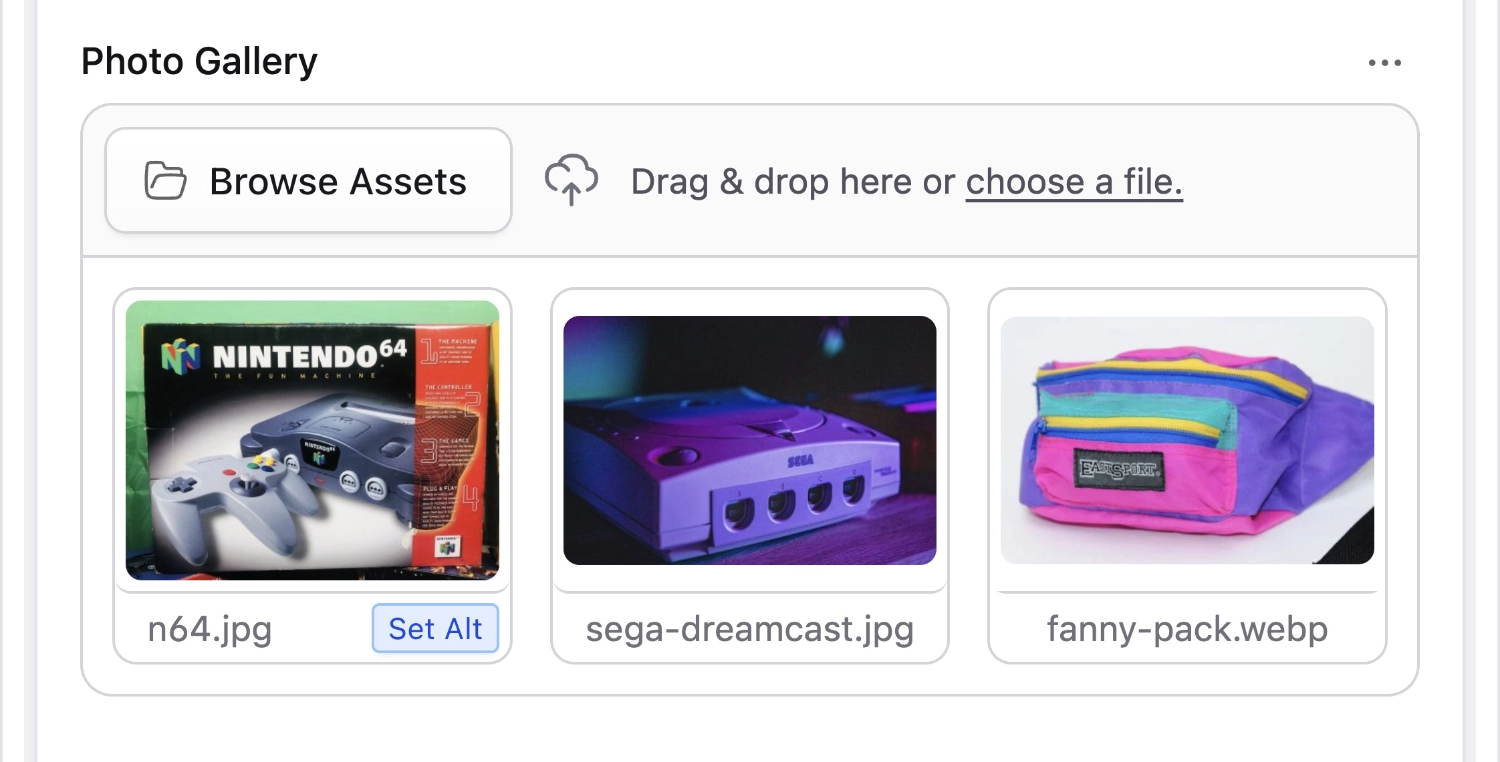
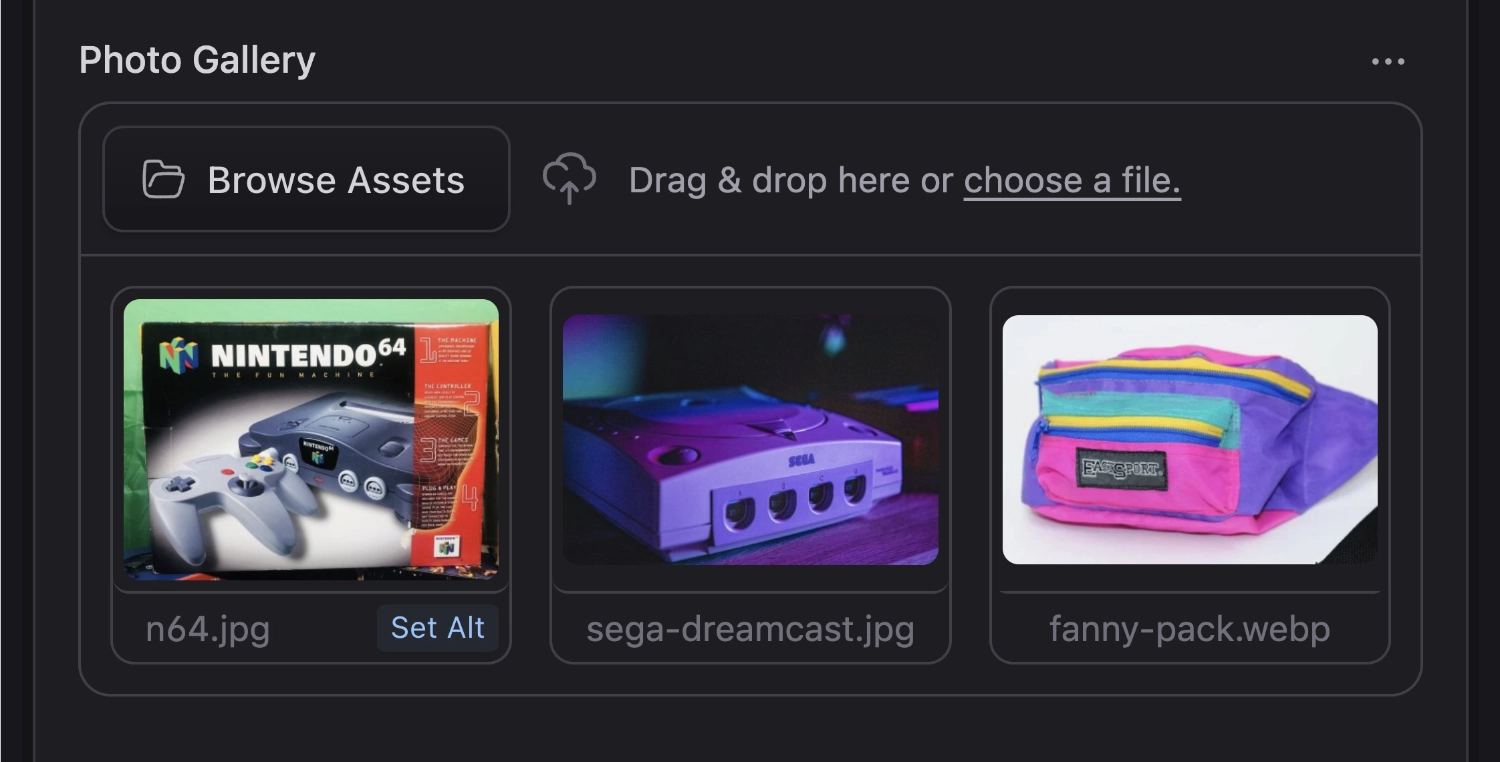
The assets fieldtype is used to manage and relate files with your entries. From the fieldtype you can manage custom fields on the assets themselves (learn more about that in the [assets guide](/assets.md)), preview full size images or rich media files, and even set focal points for cropping.
Files are rearrangeable via drag-and-drop.
## UI Modes
The list mode is shown in the previous screenshot, while the grid mode is shown below. There are no functional differences, only visual ones. List mode is more compact – useful if you're not primarily managing images.
List mode reveals a fanny pack in all its glory. And if you’re British—go on, have a little chuckle.
## Data Structure
Data is stored as an array of image paths _relative to the asset container_. Each asset's full URL is generated dynamically on the frontend based on the image path and its container. This allows containers to be a bit more portable by avoiding fully hardcoded file paths.
If `max_files` is set to `1`, a string will be saved instead of an array.
``` yaml
# Default YAML
gallery_images:
- fresh-prince.jpg
- dj-jazzy-jeff.jpg
- uncle-phil.jpg
# With max_files: 1
hero_image: surf-boards.jpg
```
## Templating
The Asset fieldtype uses [augmentation](/augmentation.md) to automatically relate the files with their Asset records, pull in custom and meta data, and resolve all image paths based on the container.
::tabs
By using a tag pair syntax, you'll be able to output variables for each asset:
```antlers
{{ gallery_images }}
{{ /gallery_images }}
{{ hero_image }}
{{ /hero_image }}
```
::tab
You can use the `@foreach` directive to loop over each asset and output its variables:
```blade
@foreach ($gallery_images as $asset)
@endforeach
{{-- Assuming $hero_image is max_files: 1 --}}
```
::
```html
```
The same tag pair syntax can be used regardless of your `max_files` setting.
::tabs
If you have `max_files: 1`, you can also use a single tag syntax to directly use a variable inside the asset. Without a second tag part, the URL will be used.
```antlers
{{ hero_image }}
{{ hero_image:url }}
{{ hero_image:alt }}
```
::tab
If you have `max_files: 1`, you can use property access to output variables within the asset. When output as a string, the URL will be used.
```blade
{{ $hero_image }}
{{ $hero_image->url }}
{{ $hero_image->alt }}
```
::
```html
/assets/surf-boards.jpg
/assets/surf-boards.jpg
3 colorful surf boards
```
### Variables
Inside an asset variable's tag pair you'll have access to the following variables.
| Variable | Description |
|----------|-------------|
| `url` | Web-friendly URL to the file. |
| `path` | Path to the file relative to asset container |
| `permalink` | Absolute URL to the file including your site URL. |
| `basename` | Name of the file with file extension |
| `blueprint` | Which blueprint is managing the asset container |
| `container` | Which asset container the file is in |
| `edit_url` | URL to edit asset in the Control Panel |
| `extension` | File extension |
| `filename` | Name of the file without file extension |
| `folder` | Which folder the file is in |
| `is_audio` | `true` when file is one of `aac`, `flac`, `m4a`, `mp3`, `ogg`, or `wav`. |
| `is_image` | `true` when file is one of `jpg`, `jpeg`, `png`, `gif`, or `webp`. |
| `is_svg` | `true` when file is an `svg`. |
| `is_pdf` | `true` when file is a `pdf`. |
| `is_video` | `true` when file is one of `h264`, `mp4`, `m4v`, `ogv`, or `webm`. |
| `last_modified` | Formatted date string of the last modified time |
| `last_modified_instance` | [Carbon][carbon] instance of the last modified time |
| `last_modified_timestamp` | Unix timestamp of the last modified time |
| `size` | Pre-formatted file size (`3.48 MB`) |
| `size_b` | File size in bytes |
| `size_kb` | File size in kilobytes |
| `size_mb` | File size in megabytes |
| `size_gb` | File size in gigabytes |
### Image Assets
| Variable | Description |
|----------|-------------|
| `height` | height of an image, in pixels |
| `width` | width of an image, in pixels |
| `focus_css` | CSS `background-image` property for a focal point
| `orientation` | Is one of `portrait`, `landscape`, `square`, or `null`. |
| `ratio` | An image's ratio (`1.77`) |
:::tip
You can use [Glide](/tags/glide.md) to crop, flip, sharpen, pixelate, and perform other sweet image manipulations.
:::
### Asset Field Data
::tabs
All custom data set on the assets will also be available inside the asset tag loop.
```antlers
{{ gallery_images }}
{{ caption }}
{{ /gallery_images }}
```
::tab
All custom data set on the assets will also be available on the asset instance.
```blade
@foreach ($gallery_images as $image)
@if ($caption = $image->caption)
{{ $caption }}
@endif
@endforeach
```
::
## Dynamic Folders
In addition to selecting which container and folder assets will be uploaded into, you may configure the field to have a dedicated subfolder based on an entry's value.
For example, you may want to place all the images for a blog post in its own directory.
```yaml
type: assets
container: images
folder: blog
dynamic: slug
```
This would result in `image.jpg` being uploaded to `path/to/images/blog/my-entry-slug/image.jpg`.
You may target the entry's `id`, `slug`, or `author` values.
:::warning
The values are *not* kept in sync. For example, if you change the entry's slug, the asset folder will not be renamed. You may rename the folder manually via a control on the field, or within the asset browser.
:::
[carbon]: https://carbon.nesbot.com/docs/


 ```
The same tag pair syntax can be used regardless of your `max_files` setting.
::tabs
If you have `max_files: 1`, you can also use a single tag syntax to directly use a variable inside the asset. Without a second tag part, the URL will be used.
```antlers
{{ hero_image }}
{{ hero_image:url }}
{{ hero_image:alt }}
```
::tab
If you have `max_files: 1`, you can use property access to output variables within the asset. When output as a string, the URL will be used.
```blade
{{ $hero_image }}
{{ $hero_image->url }}
{{ $hero_image->alt }}
```
::
```html
/assets/surf-boards.jpg
/assets/surf-boards.jpg
3 colorful surf boards
```
### Variables
Inside an asset variable's tag pair you'll have access to the following variables.
| Variable | Description |
|----------|-------------|
| `url` | Web-friendly URL to the file. |
| `path` | Path to the file relative to asset container |
| `permalink` | Absolute URL to the file including your site URL. |
| `basename` | Name of the file with file extension |
| `blueprint` | Which blueprint is managing the asset container |
| `container` | Which asset container the file is in |
| `edit_url` | URL to edit asset in the Control Panel |
| `extension` | File extension |
| `filename` | Name of the file without file extension |
| `folder` | Which folder the file is in |
| `is_audio` | `true` when file is one of `aac`, `flac`, `m4a`, `mp3`, `ogg`, or `wav`. |
| `is_image` | `true` when file is one of `jpg`, `jpeg`, `png`, `gif`, or `webp`. |
| `is_svg` | `true` when file is an `svg`. |
| `is_pdf` | `true` when file is a `pdf`. |
| `is_video` | `true` when file is one of `h264`, `mp4`, `m4v`, `ogv`, or `webm`. |
| `last_modified` | Formatted date string of the last modified time |
| `last_modified_instance` | [Carbon][carbon] instance of the last modified time |
| `last_modified_timestamp` | Unix timestamp of the last modified time |
| `size` | Pre-formatted file size (`3.48 MB`) |
| `size_b` | File size in bytes |
| `size_kb` | File size in kilobytes |
| `size_mb` | File size in megabytes |
| `size_gb` | File size in gigabytes |
### Image Assets
| Variable | Description |
|----------|-------------|
| `height` | height of an image, in pixels |
| `width` | width of an image, in pixels |
| `focus_css` | CSS `background-image` property for a focal point
| `orientation` | Is one of `portrait`, `landscape`, `square`, or `null`. |
| `ratio` | An image's ratio (`1.77`) |
:::tip
You can use [Glide](/tags/glide.md) to crop, flip, sharpen, pixelate, and perform other sweet image manipulations.
:::
### Asset Field Data
::tabs
All custom data set on the assets will also be available inside the asset tag loop.
```antlers
{{ gallery_images }}
```
The same tag pair syntax can be used regardless of your `max_files` setting.
::tabs
If you have `max_files: 1`, you can also use a single tag syntax to directly use a variable inside the asset. Without a second tag part, the URL will be used.
```antlers
{{ hero_image }}
{{ hero_image:url }}
{{ hero_image:alt }}
```
::tab
If you have `max_files: 1`, you can use property access to output variables within the asset. When output as a string, the URL will be used.
```blade
{{ $hero_image }}
{{ $hero_image->url }}
{{ $hero_image->alt }}
```
::
```html
/assets/surf-boards.jpg
/assets/surf-boards.jpg
3 colorful surf boards
```
### Variables
Inside an asset variable's tag pair you'll have access to the following variables.
| Variable | Description |
|----------|-------------|
| `url` | Web-friendly URL to the file. |
| `path` | Path to the file relative to asset container |
| `permalink` | Absolute URL to the file including your site URL. |
| `basename` | Name of the file with file extension |
| `blueprint` | Which blueprint is managing the asset container |
| `container` | Which asset container the file is in |
| `edit_url` | URL to edit asset in the Control Panel |
| `extension` | File extension |
| `filename` | Name of the file without file extension |
| `folder` | Which folder the file is in |
| `is_audio` | `true` when file is one of `aac`, `flac`, `m4a`, `mp3`, `ogg`, or `wav`. |
| `is_image` | `true` when file is one of `jpg`, `jpeg`, `png`, `gif`, or `webp`. |
| `is_svg` | `true` when file is an `svg`. |
| `is_pdf` | `true` when file is a `pdf`. |
| `is_video` | `true` when file is one of `h264`, `mp4`, `m4v`, `ogv`, or `webm`. |
| `last_modified` | Formatted date string of the last modified time |
| `last_modified_instance` | [Carbon][carbon] instance of the last modified time |
| `last_modified_timestamp` | Unix timestamp of the last modified time |
| `size` | Pre-formatted file size (`3.48 MB`) |
| `size_b` | File size in bytes |
| `size_kb` | File size in kilobytes |
| `size_mb` | File size in megabytes |
| `size_gb` | File size in gigabytes |
### Image Assets
| Variable | Description |
|----------|-------------|
| `height` | height of an image, in pixels |
| `width` | width of an image, in pixels |
| `focus_css` | CSS `background-image` property for a focal point
| `orientation` | Is one of `portrait`, `landscape`, `square`, or `null`. |
| `ratio` | An image's ratio (`1.77`) |
:::tip
You can use [Glide](/tags/glide.md) to crop, flip, sharpen, pixelate, and perform other sweet image manipulations.
:::
### Asset Field Data
::tabs
All custom data set on the assets will also be available inside the asset tag loop.
```antlers
{{ gallery_images }}