# Replicator
## Usage
You will be presented with a button for each set you’ve defined. Clicking one will replicate an empty set. You can [replicate](https://www.youtube.com/watch?v=qD4EVXkfe0w) a single set type as many times as you like as well as dragging and dropping them to adjust their order.
You may collapse your sets to conserve space. If you do, a preview of the data contained within it will be displayed. [Third party fieldtypes may control how their data will be previewed](/extending/fieldtypes.md#replicator-preview). You can prevent certain fields being shown in the preview text by adding `replicator_preview: false`.
The following fieldset YAML is an example of what could be used to construct the Replicator shown in the screenshot above:
``` yaml
fields:
my_replicator_field:
type: replicator
display: Replicator
sets:
text:
display: Text
fields:
text:
type: markdown
image:
display: Image
fields:
photo:
type: assets
container: main
max_files: 1
caption:
type: text
quote:
display: Pull Quote
fields:
text:
type: text
cite:
type: text
pull:
type: radio
options:
left: Left Align
right: Right Align
```
## Set Previews
New to Statamic v6, you can add an image preview of your set, _as well as_ an icon. Previews make it easy to identify sets by showing a screenshot of what the rendered set might look like on the front-end. Clients can now say “ah, that one” without pretending to know the names you carefully gave them.
### Configuring Set Previews
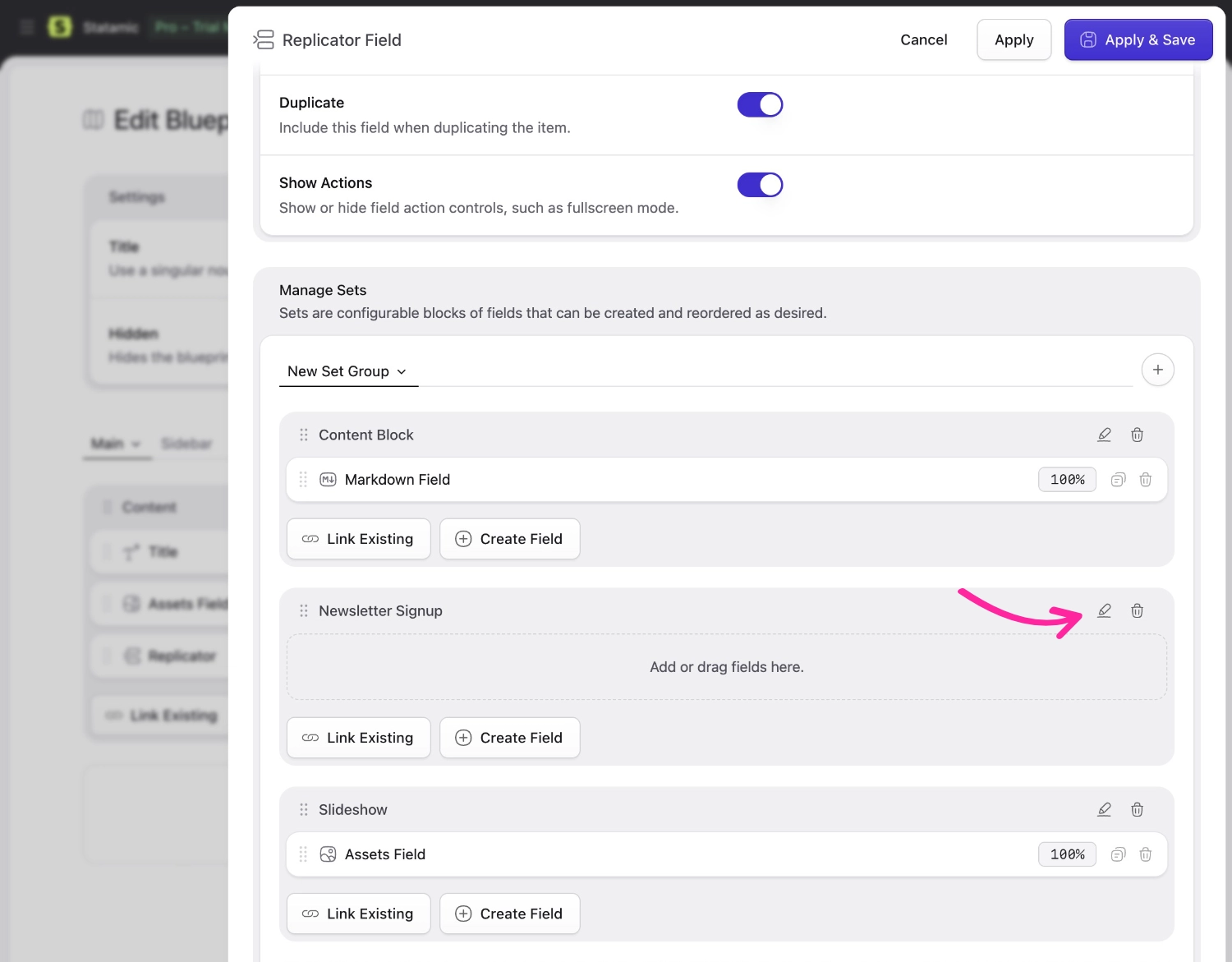
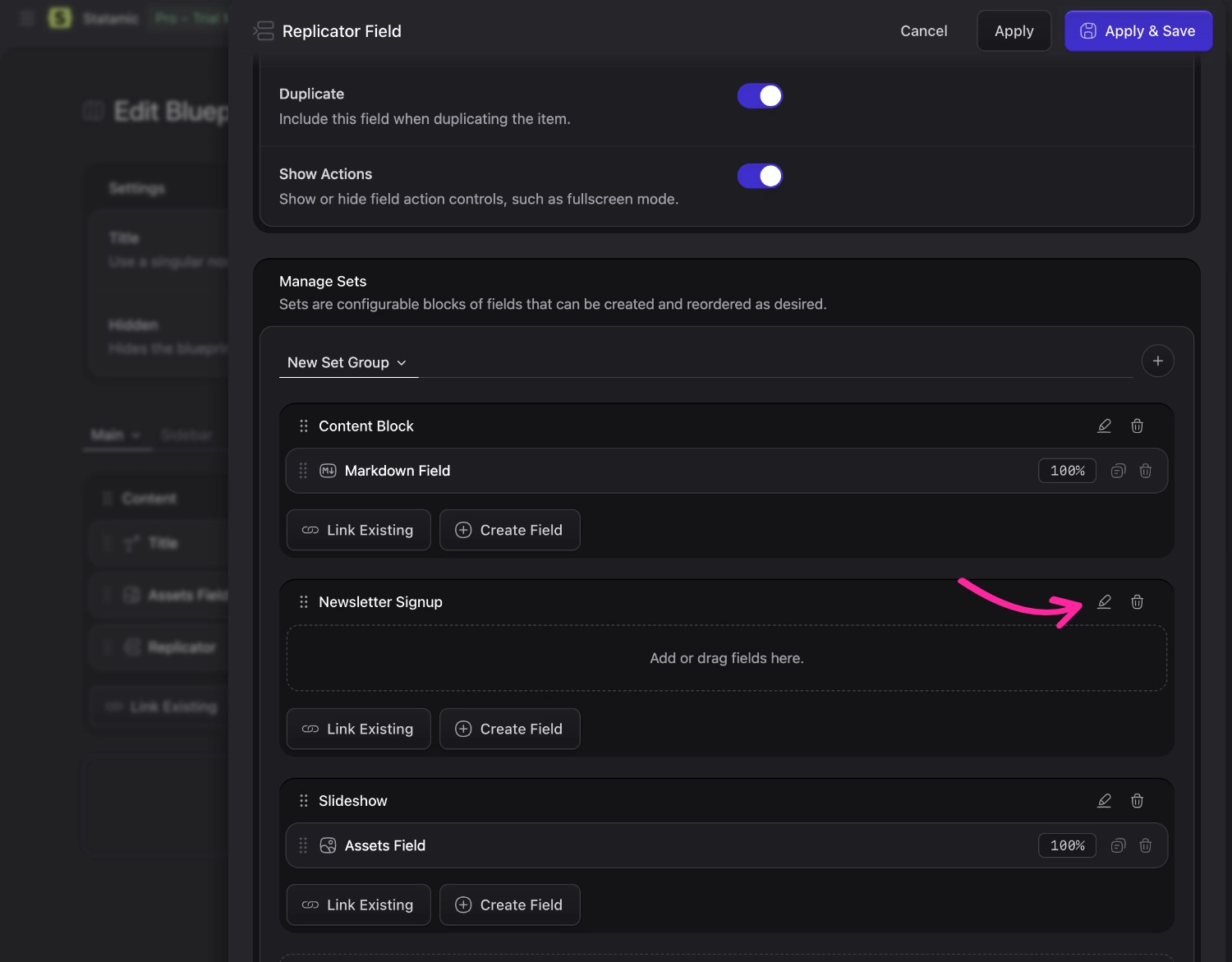
To add a set preview, click the little "pencil" icon next to the set name.
Let's give the set a preview.
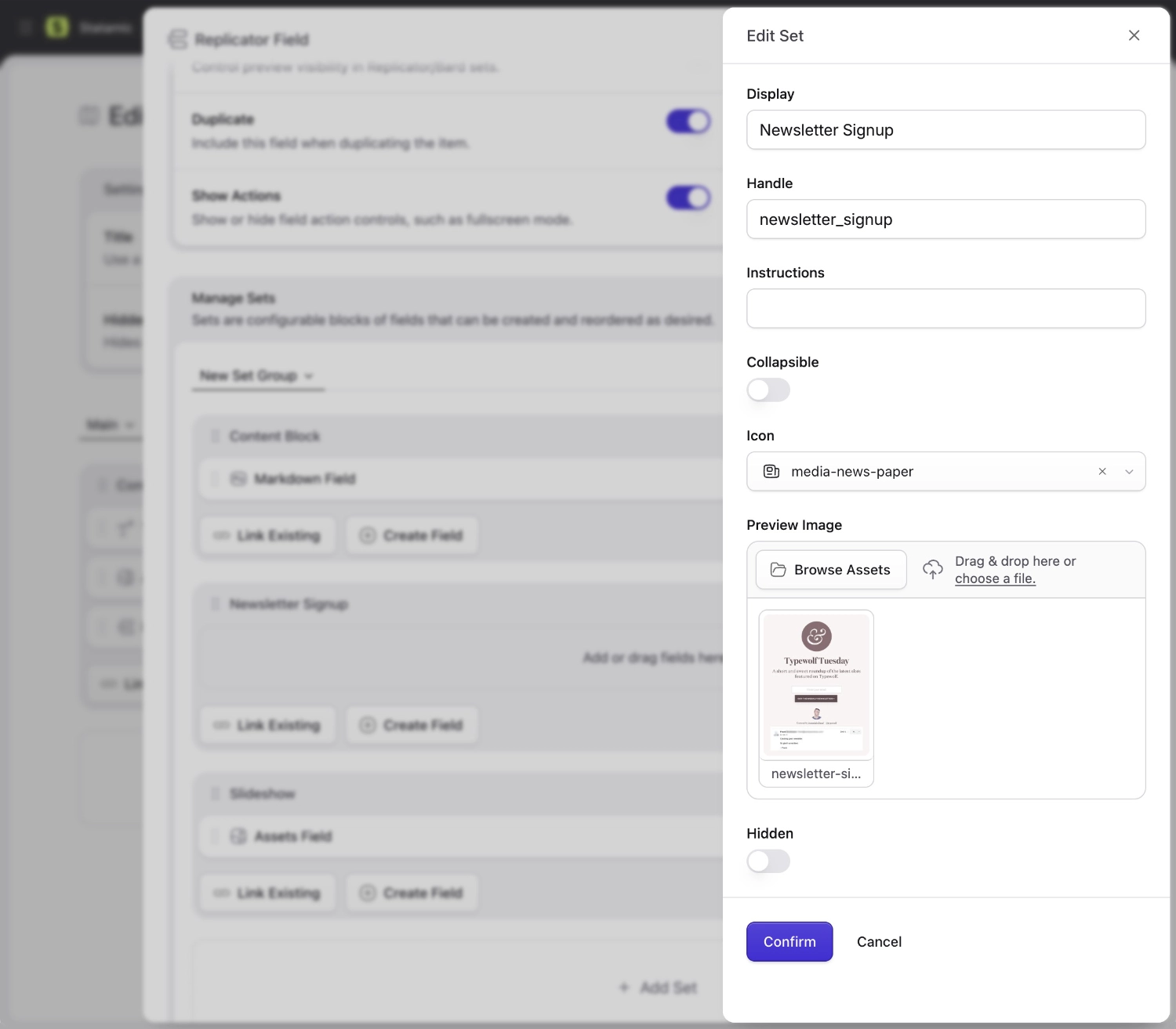
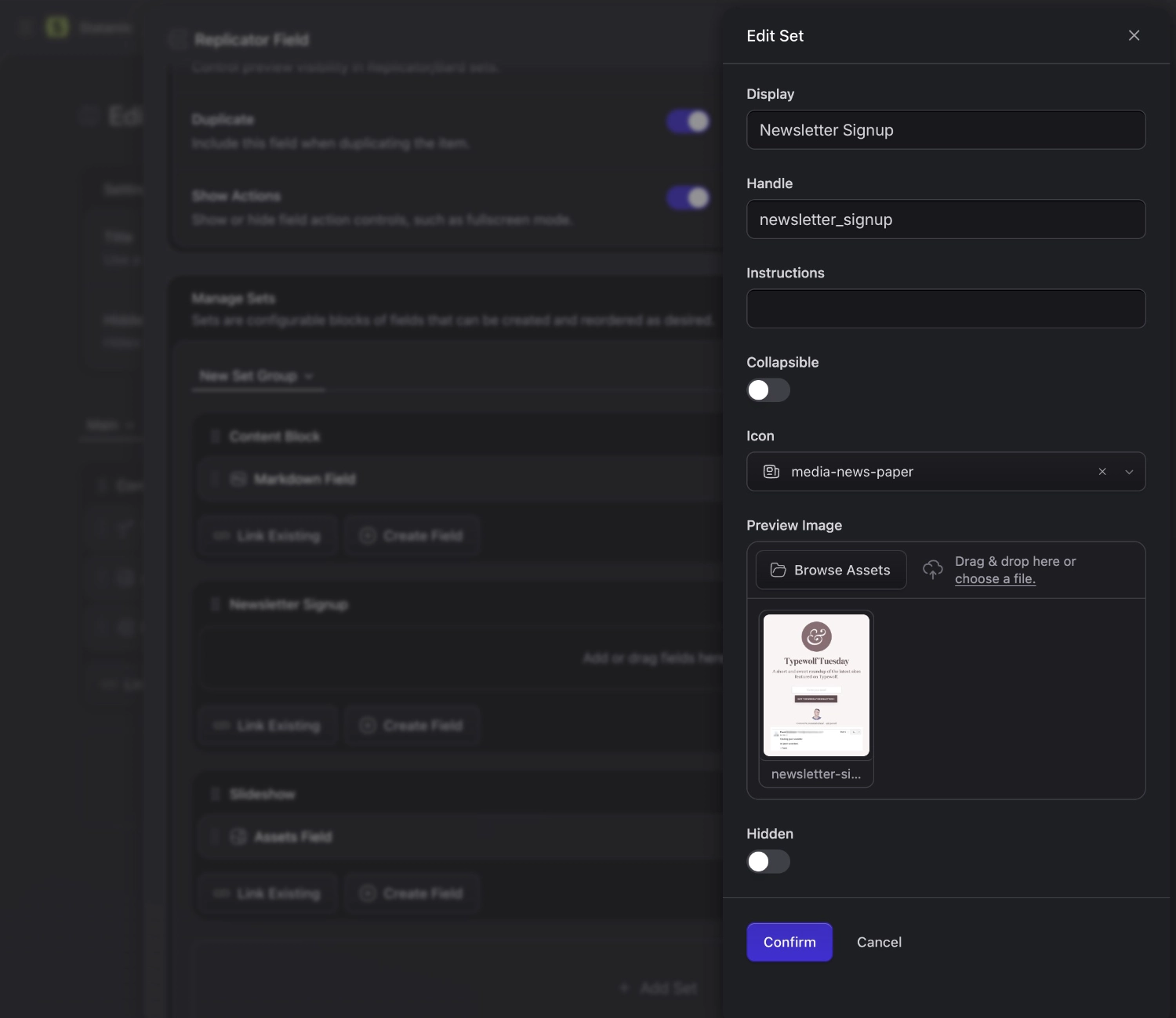
Once you're in the set editor, you can add a preview image and icon. Here we're showing a lovely screenshot of what the newsletter signup form might look like on the front-end. We can even add some instructions to explain how the set is used.
Behold a Preview Image, for the love of all clients.
### Set Previews in Action
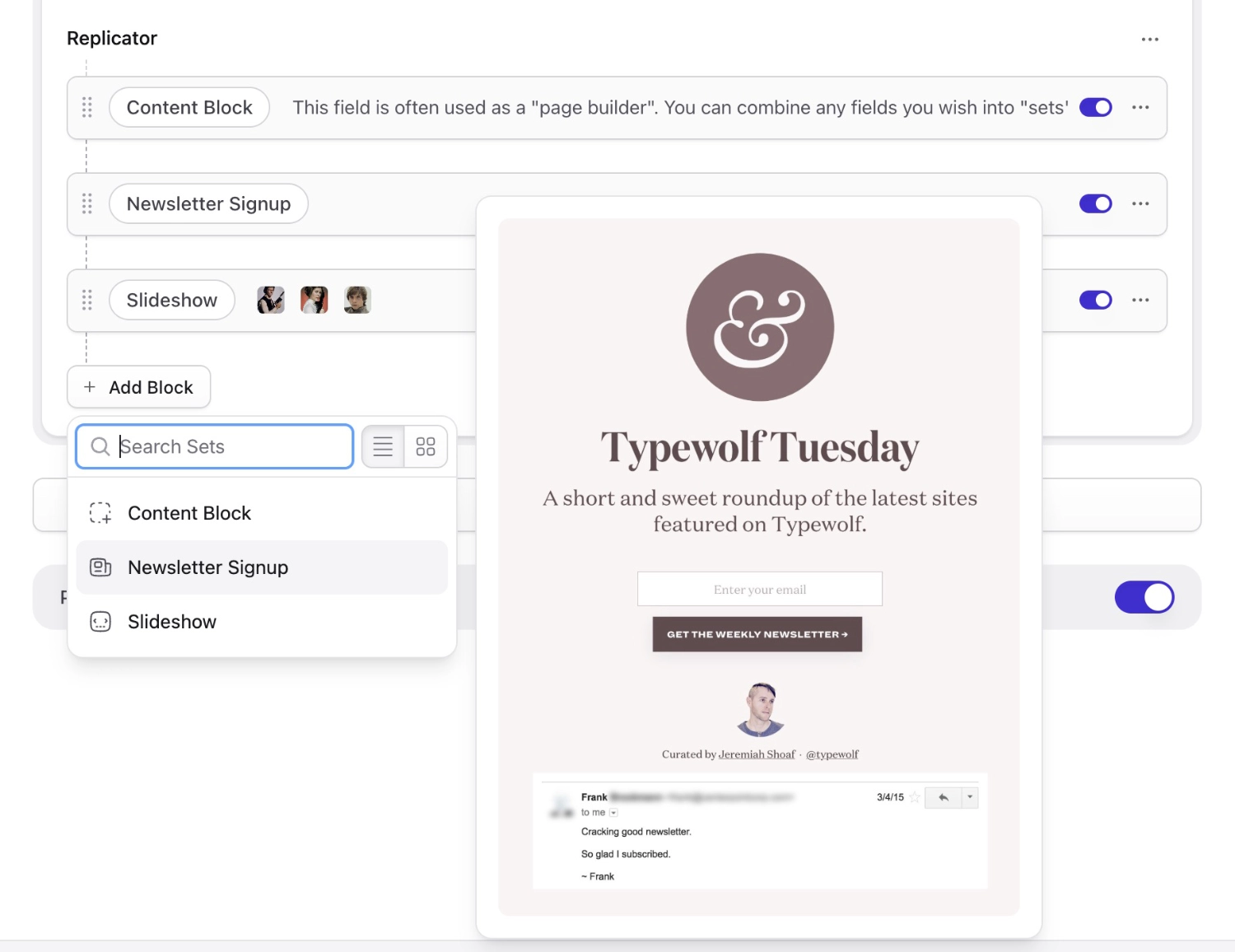
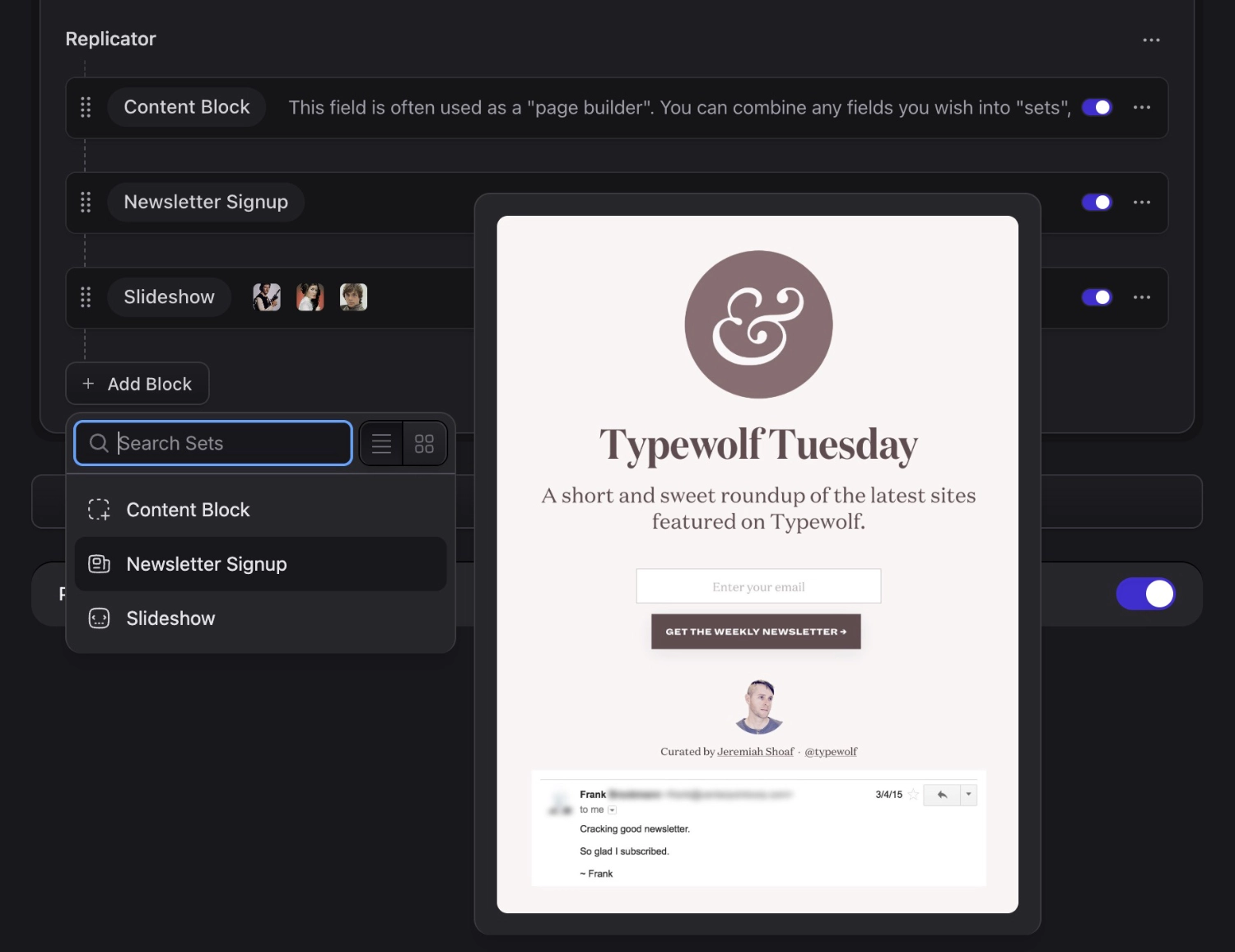
Once you've set a preview image, users adding a replicator set can hover over the set to preview what it might look like on the frontend.
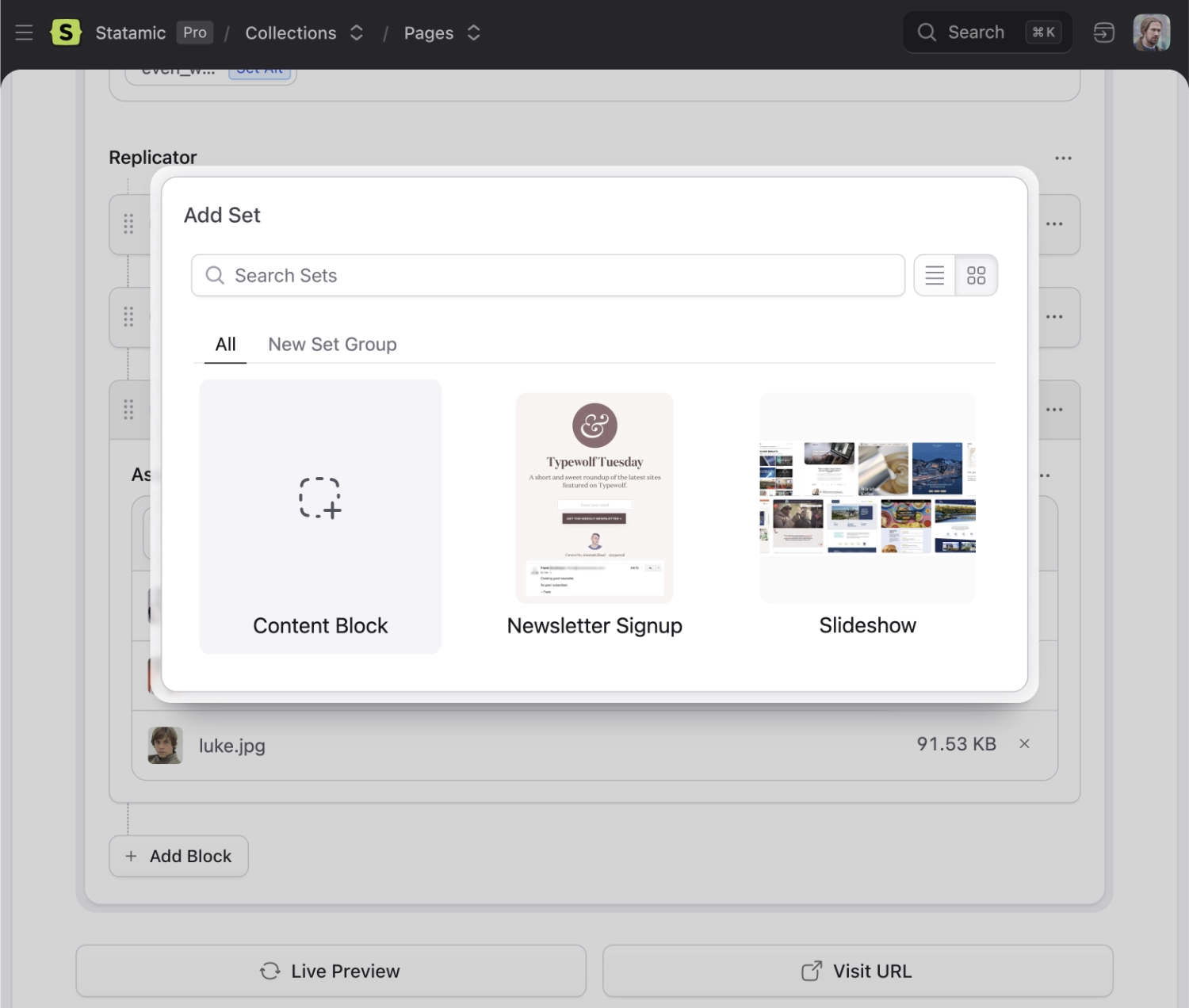
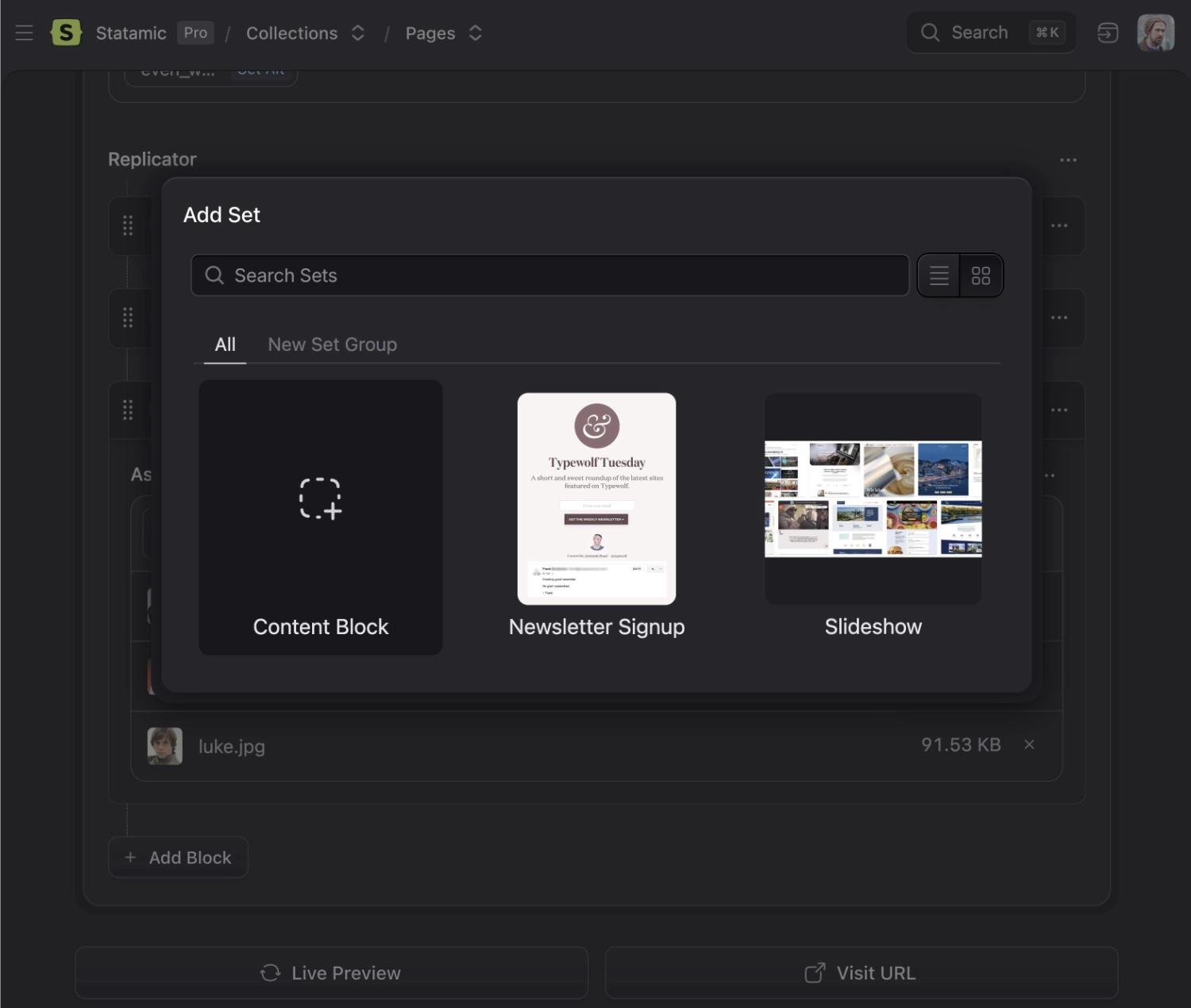
You can view previews in two different UI modes: in a list of set names, or in a grid of sets with their preview images.
A preview in a list of sets.A preview in a grid of sets. Previews fall back to the set icon if no preview image is set.
## Fieldtypes
You can use any fieldtypes inside your Replicator sets. Make sure to compare the experience with the other meta-fields: [Grid](/fieldtypes/grid.md) and [Bard](/fieldtypes/bard.md).
## Data Structure {#data-structure}
Replicator stores your data as an array with the set name as `type`.
```yaml
my_replicator_field:
-
type: text
text: "Let's talk about the best new show from 2017!"
-
type: image
photo: /assets/night-manager.jpg
caption: The Night Manager
-
type: quote
text: Such fear, such dread, and such a dazzling script.
cite: Deborah Ross
pull: right
```
:::warning
Please note that you **cannot** use a Replicator fieldtype for the `content` field.
:::
## Templating {#templating}
Use the tag pair syntax with an `if/else` conditions to style each set accordingly.
::tabs
::tab antlers
```antlers
{{ my_replicator_field }}
{{ if type == "text" }}
@elseif ($set->type === 'image')
{{ $set->caption }}
@endif
@endforeach
```
::
An alternative, and often cleaner, approach is to have multiple 'set' partials and do:
::tabs
::tab antlers
```antlers
{{ my_replicator_field }}
{{ partial src="sets/{type}" }}
{{ /my_replicator_field }}
```
::tab blade
:::tip
By using `[...$set]`, you can access the set variables within the set's Blade file without having to reference `$set` for each variable.
For example, `{!! $set->text !!}` becomes `{!! $text !!}`.
:::
```blade
@foreach ($my_replicator_field as $set)
@include('fieldtypes.partials.sets.'.$set->type, [...$set])
@endforeach
```
::
Then inside your partials directory you could have:
::tabs
::tab antlers
``` files theme:serendipity-light
resources/views/partials/sets/
text.antlers.html
quote.antlers.html
image.antlers.html
```
::tab blade
``` files theme:serendipity-light
resources/views/partials/sets/
text.blade.php
quote.blade.php
image.blade.php
```
::
and the `image` set partial may look something like:
::tabs
::tab antlers
```antlers
{{# this is image.antlers.html #}}
```
::tab blade
```blade
{{-- this is image.blade.php --}}
{{ $caption }}
```
::
## Custom set icons
You can change the icons available in the set picker by configuring an icon set in a service provider.
For example, you can drop this into your `AppServiceProvider`'s `boot` method:
```php
use Statamic\Fieldtypes\Sets;
public function boot()
{
Sets::useIcons('heroicons', resource_path('svg/heroicons'));
}
```