# Deploying Statamic with Laravel Forge
Laravel Forge provisions and deploys PHP applications on DigitalOcean, Vultr, Akamai, AWS Hetzner and other hosting platforms. It's our favorite way to deploy Statamic.
Assuming you already have a [Laravel Forge](https://forge.laravel.com) account, the first thing to do is create a server.
## Creating a New Server
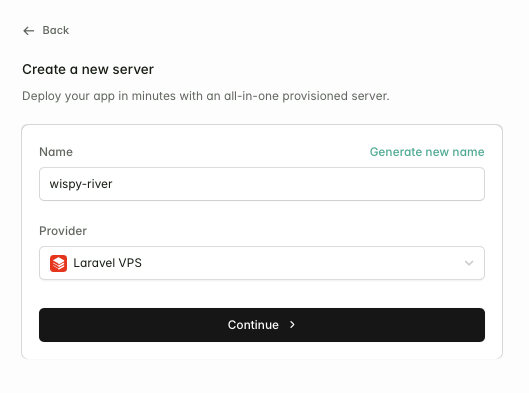
You can host your site on Laravel VPS (which is billed on top of your Forge subscription), [DigitalOcean](https://m.do.co/c/6469827e2269), AWS, Hetzner, or even your own fresh Ubuntu server.
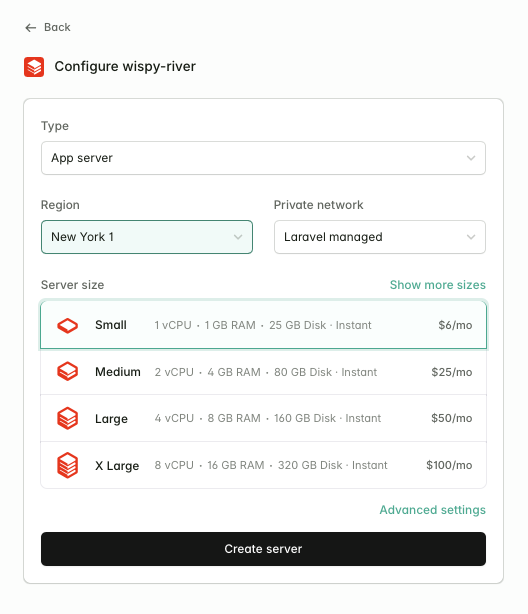
On the next screen, you'll be asked to configure your server.
For most Statamic sites, you'll want to leave the type as "App server". You should pick the region closest to your users and select a server size suitable for your project.
Once you've created your server, Forge will give you your server's sudo and database passwords. Keep these safe as you won't be able to retrieve them later.
## Creating a New Site
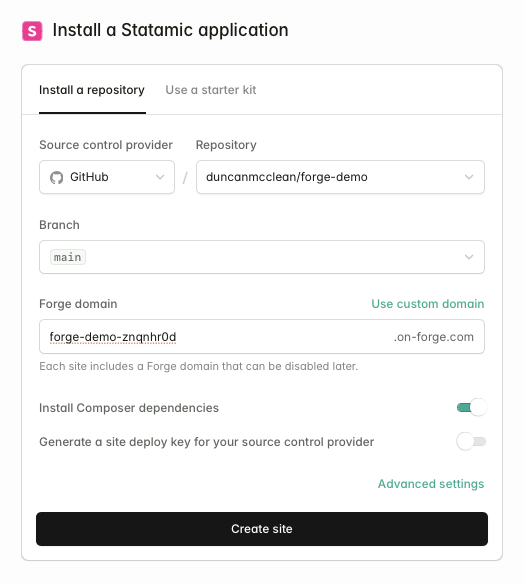
The next step is to create a new site. Make sure to select "Statamic" from the "New site" dropdown to take advantage of some Statamic-specific optimizations.
Select your Git repository, the branch you want to deploy, and configure a domain. If you don't have a domain yet, you can use a `.on-forge.com` subdomain.
:::tip Note
Zero downtime deployments are disabled by default for Statamic sites, due to the additional configuration required.
Before enabling, please review our [Zero Downtime Deployments](/tips/zero-downtime-deployments.md) guide.
:::
## Deploying
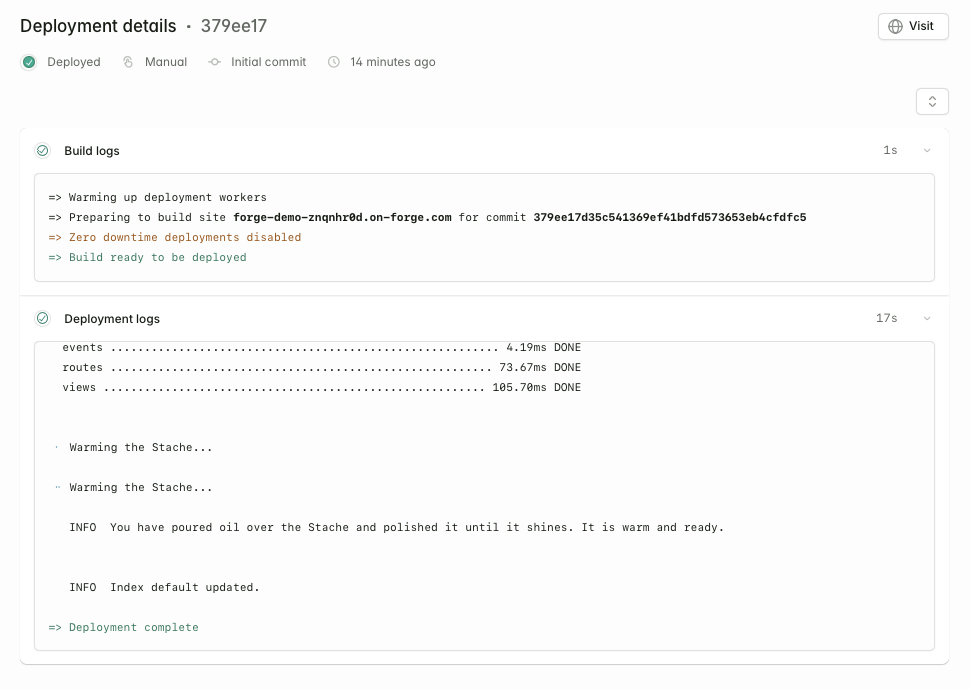
After creating your site, Forge will take a few seconds to configure the necessary services, like Nginx and PHP-FPM, then you'll be able to trigger your first deploy.
## Configuring Deployments
You can customize your deployment script under `Settings -> Deployments`. Your deploy script will look something like this:
```shell
cd /home/forge/forge-demo-znqnhr0d.on-forge.com
git pull origin $FORGE_SITE_BRANCH
$FORGE_COMPOSER install --no-dev --no-interaction --prefer-dist --optimize-autoloader
# Prevent concurrent php-fpm reloads...
touch /tmp/fpmlock 2>/dev/null || true
( flock -w 10 9 || exit 1
echo 'Reloading PHP FPM...'; sudo -S service $FORGE_PHP_FPM reload ) 9 Environment`, you may configure your site's environment variables. You'll find Statamic's variables near the bottom, prefixed with `STATAMIC_`.