Image Manipulation (Glide)
Statamic uses Glide to manipulate images – from resizing and cropping to adjustments (like sharpness and contrast) and image effects (like pixelate and sepia).
Route#
The route controls where your Glide images will be served.
'image_manipulation' => [
    'route' => 'img'
]
By default your Glide images will be served from '/img/...' but you are free to change that. Perhaps if you intend to have some actual images stored in the img directory.
This route setting may become irrelevant when using customized caching options explained further down this page, except when using hybrid caching, where cache_path must be served at this route.

Presets#
Presets are pre-configured sets of manipulations that can be referenced at a later time. They are managed in config/statamic/assets.php as an array that holds a list of named presets and their desired parameters.
'image_manipulation' => [
    'presets' => [
        'thumbnail' => [ 'w' => 300,  'h' => 300, 'q' => 75 ],
        'hero'      => [ 'w' => 1440, 'h' => 600, 'q' => 90 ],
    ],
],
All standard Glide API parameters are available for use in presets.
Drivers#
Out of the box, Glide will use the GD library for manipulating images. However, you can also use ImageMagick (which requires the imagick PHP extension) or libvips.
You can change the driver in your config/statamic/assets.php file:
'driver' => 'gd', // or 'imagick', or a custom driver class name
To learn more about the available drivers, please refer to the Glide documentation.
Glide tag#
Each named preset can be referenced with the preset parameter on the Glide tag:
{{ glide:thumbnail preset="thumbnail" }}
<!-- width: 300px, height: 300px, quality: 75% -->

{{ glide:hero_image preset="hero" }}
<!-- width: 1440px, height: 600px, quality: 90% -->
<s:glide:thumbnail preset="thumbnail" />
<!-- width: 300px, height: 300px, quality: 75% -->

<s:glide:hero_image preset="hero" />
<!-- width: 1440px, height: 600px, quality: 90% -->
Generate on upload#
When uploading an image asset, any configured presets will be generated so they're ready when you need to reference them, e.g. in the Glide tag.
By default, all presets are generated, however you can customize this per-container.
You may also choose to disable image generation on upload completely:
'image_manipulation' => [
    'generate_presets_on_upload' => false,
],
Generate manually#
You may want to generate the presets manually (for example after you changed the config, and you already uploaded the images, or if you've disabled generation on upload) on the command line:
php please assets:generate-presets
To generate only a single preset, pass its handle to --preset. Use cp_thumbnail to regenerate the Control Panel thumbnails.
php please assets:generate-presets --preset=small
Process source images#
Sometimes you may wish to process your actual source images on upload. For example, maybe you need to enforce maximum dimensions on extremely large images in order to save on disk space.
To do this, first configure an image manipulation preset in config/statamic/assets.php for this purpose:
'image_manipulation' => [
    'presets' => [
        'max_upload_size' => ['w' => 2000, 'h' => 2000, 'fit' => 'max'],
    ],
],
Then in your asset container settings, you can configure uploads to use this preset:
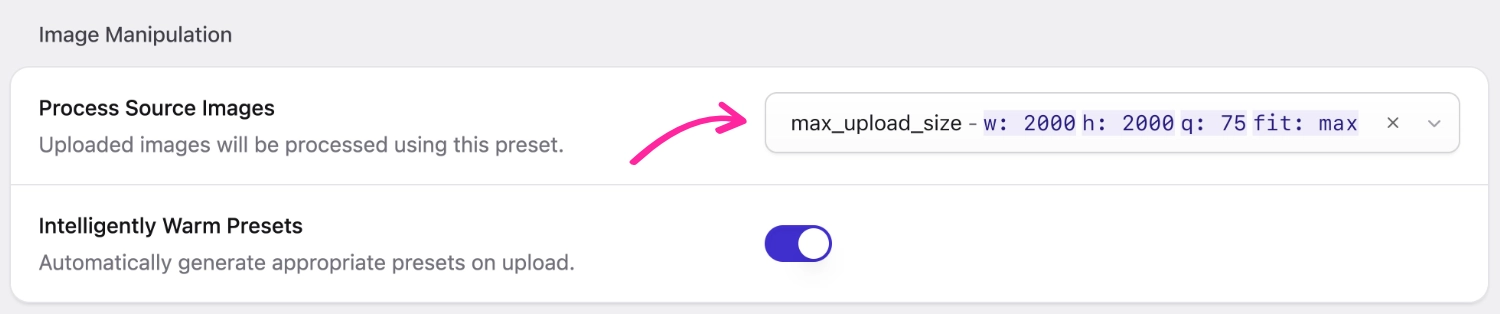
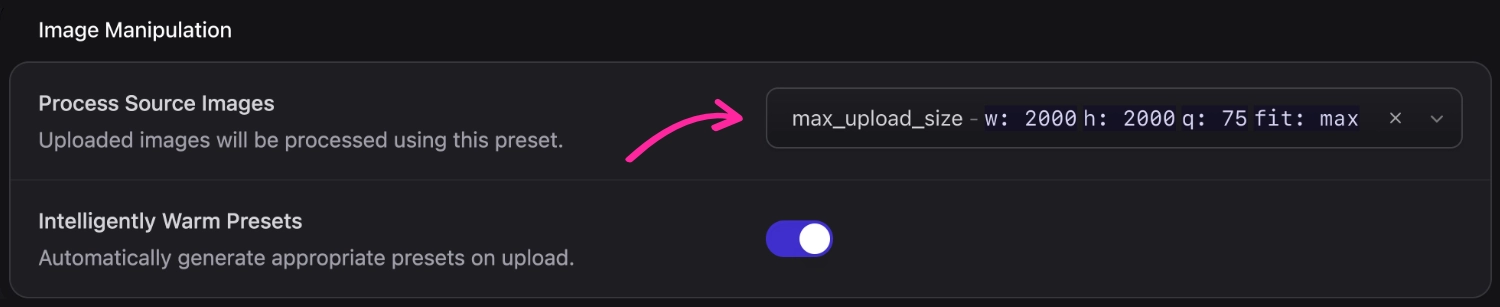
The fit is the important part for this one. Using max will ensure images smaller than those dimensions will not be upscaled - only larger images will be resized.
Customize preset warming#
As mentioned above, Statamic will generate images for all of your configured presets on upload. (i.e. "warming" the generated images).
By default, Statamic will do this "intelligently", which means it'll generate all presets except for the one used for source processing:
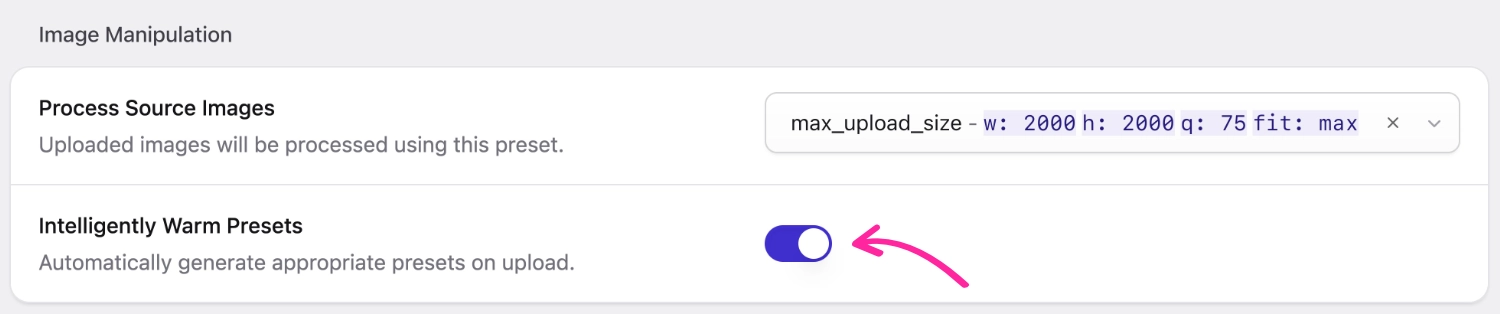
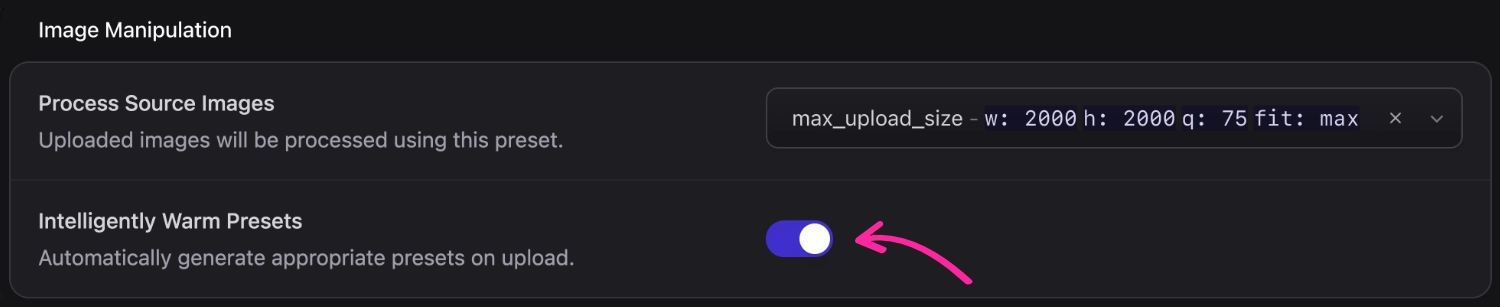
However, you may wish to configure which presets are warmed in your asset container settings (or leave this option blank to disable warming altogether):
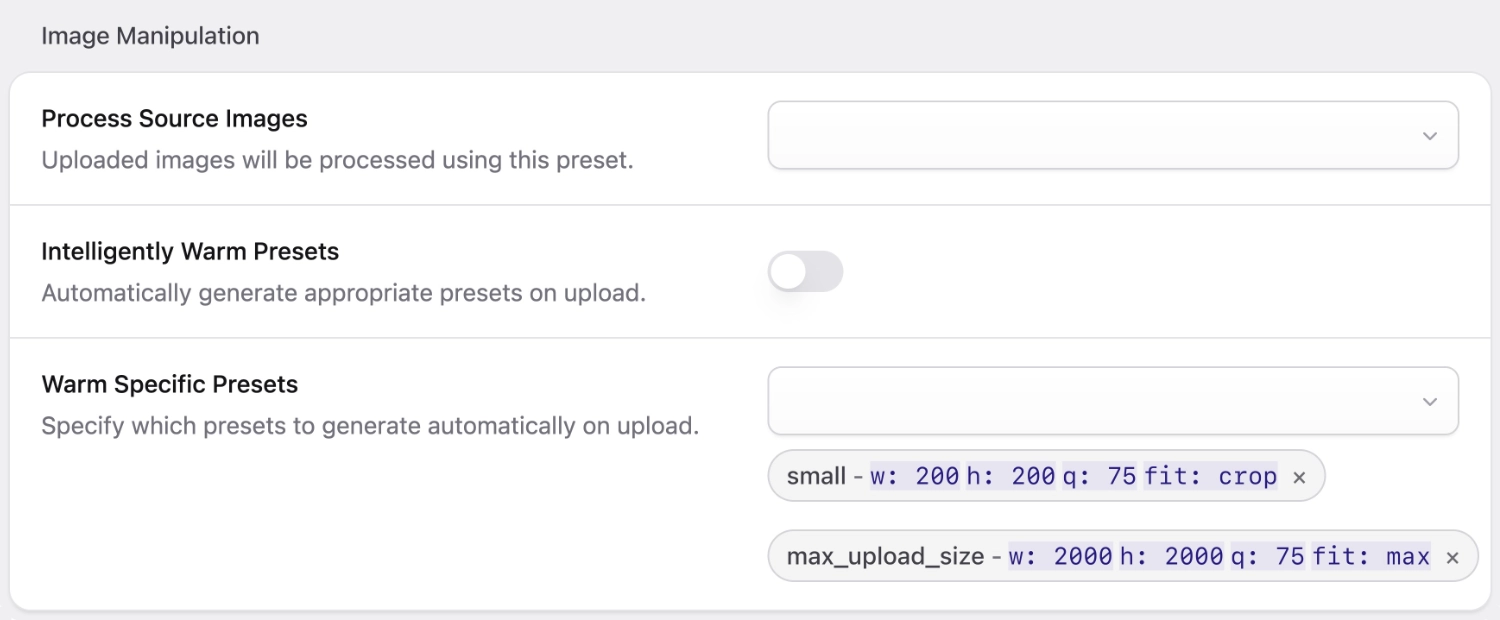

If you have a preset that's only going to be used with images in one particular container, you should customize which ones are used so your server doesn't have to waste resources on generating and storing images that won't get used.
Caching#
Out of the box, Glide will "just work". However, you may want to adjust its caching methods for better performance.
In the context of Glide, the "source" is the filesystem where the original images are kept, and the "cache" is the filesystem where it saves the manipulated images.
Default (Dynamic)#
The default behavior is for the cache to be "disabled" or "dynamic".
// config/statamic/assets.php
'image_manipulation' => [
    'route' => 'img',
    'cache' => false,
]
From a user's point of view, the "cache" is disabled, however technically it's just located at storage/statamic/glide.
The Glide tag will output URLs to the configured Glide route. When one of these URLs are visited, Statamic will use Glide to perform the transformation.
When using this method, since the Glide tag only needs to generate URLs, the load time of the page will be faster, but the initial load time of each image request will be slower.
Custom path (Static)#
The next level of caching would be to specify a custom, publicly accessible location for the images to be generated.
// config/statamic/assets.php

'image_manipulation' => [
    'route' => 'img',
    'cache' => true,
    'cache_path' => public_path('img'),
]
When using this setting, the Glide tag will actually generate the images instead of just outputting a URL.
Since the images are generated to a publicly accessible location, the next time a user visits the image URL, the static image would be served directly by the server, and would not need to be touched by PHP or Statamic.
When using this method, since the Glide tag has to generate the images, the initial load time of the page will be slower.
Hybrid (On-Demand Static)#
This strategy gives you the best of both worlds: fast template rendering (like dynamic mode) and fast image serving on subsequent requests (like static mode).
// config/statamic/assets.php

'image_manipulation' => [
    'cache' => 'hybrid',
    'cache_path' => public_path('img'),
]
The Glide tag will output URLs pointing to where the cached image will exist, but won't generate the image during template rendering. When the browser requests the image URL:
- If the image already exists on disk, your web server serves it directly — no PHP needed.
- If the image doesn't exist yet, the request falls through to PHP, which generates the image, saves it to the public
cache_path, and serves it.
After the first request, the web server (Nginx, Apache, etc.) will serve the static file directly on all subsequent requests.
Because the URL is the image's actual path inside public/, your standard Laravel server configuration (the shipped .htaccess, or try_files $uri in Nginx) already serves it — no additional rewrite rules are needed.
cache_path must be the public directory for route (e.g. route => 'img' should map to cache_path => public_path('img')). If they don't line up, images will always be served through PHP, and Statamic will log a warning.
Hybrid caching always writes to the local cache_path. It can't be combined with the custom disk option.
The {{ glide:generate }} tag pair still generates the image during rendering, since it needs the resulting dimensions for its attributes. Only the single Glide tag defers generation.
Hybrid URLs only resolve while their mapping exists in the Glide path cache store. Behind a load balancer or multiple servers, that store must be shared (e.g. Redis or a database) and shouldn't be cleared on deploy, or previously generated URLs will 404 until they're regenerated.
Running glide:clear, or changing image_manipulation.defaults or a preset's parameters, changes or removes the URLs your images are served from. If you use static caching, clear it too, or cached pages will reference image URLs that no longer resolve. The same applies when switching an existing site to hybrid caching: previously published dynamic URLs (like /img/asset/..., /img/http/..., or signed paths) will stop working, so clear your static cache and update any external references (e.g. emails) after switching.
Custom disk (CDN)#
You may choose to save your cached Glide images to somewhere CDN based, like Amazon S3 or DigitalOcean Spaces. Instead of specifying true as mentioned above, you can point to a filesystem disk.
// config/statamic/assets.php

'image_manipulation' => [
    'cache' => 'glide',
],
// config/filesystems.php

'disks' => [      'glide' => [          'driver' => 's3',          'key' => env('AWS_ACCESS_KEY_ID'),
        'secret' => env('AWS_SECRET_ACCESS_KEY'),
        'region' => env('AWS_DEFAULT_REGION'),
        'bucket' => env('AWS_BUCKET_GLIDE'),         'url' => env('AWS_URL_GLIDE'),          'endpoint' => env('AWS_ENDPOINT'),
        'use_path_style_endpoint' => env('AWS_USE_PATH_STYLE_ENDPOINT', false),
        'visibility' => 'public',      ],
]
Make sure that the visibility is public and that the url points to the correct location.
On Amazon S3, a visibility of public is applied to each object using an ACL. Buckets created since April 2023 have ACLs disabled by default, so Glide won't be able to write to them, failing with an AccessControlListNotSupported error.
To fix this, enable ACLs on the bucket by setting its Object Ownership to "Bucket owner preferred".
Don't use the same disk, bucket or url as your source images. If you were to clear your Glide cache (e.g. when using the glide:clear command) the whole disk will be emptied.
Path cache store#
Before Glide tries to generate an image, it will look into the filesystem to determine whether the image has already been generated. This will prevent the need for the image to be needlessly re-generated.
However, when using the Custom Disk CDN caching option with a service like Amazon S3 for example, Glide will need to make an API call just to be able to check if a file exists. This would cause a slowdown.
To alleviate this problem, Statamic will keep track of whether the images have already been generated in its own separate cache.
When using hybrid caching, this store also holds the mapping between each generated URL and its source image and parameters, so it's required rather than just a performance optimization.
This cache is separate from your application cache. Running php artisan cache:clear will not clear this Glide cache. This allows the Glide cache to persist through deployments or other scenarios where you might clear your application cache. It will be cleared when running php please glide:clear.
By default, this cache will be located in your filesystem with the storage directory.
If you would like to customize it, you can create a new store named glide in your config/cache.php configuration file. For example:
'stores' => [
    'glide' => [
        'driver' => 'redis',
        'connection' => 'glide',
    ],
]
In this example, you would also need to create a Redis database named glide in your config/database.php configuration file:
'redis' => [
    'glide' => [
        'url' => env('REDIS_URL'),
        'host' => env('REDIS_HOST', '127.0.0.1'),
        'password' => env('REDIS_PASSWORD'),
        'port' => env('REDIS_PORT', '6379'),
        'database' => env('REDIS_GLIDE_DB', '2'),
    ],
],
When using the database driver, make sure to specify the connection and table, like so:
'glide' => [
    'driver' => 'database',
    'connection' => 'mysql',
    'table' => 'cache',
],
Custom hash#
By default, Glide-generated images are saved into a directory named after an md5 hash of the manipulation parameters, resulting in a path like this:
containers/assets/path/to/image.jpg/0638baede3a7fc1a91f605e095ab74cc/image.jpg
You may customize how that hash is generated — for example, to produce human-readable paths for debugging, QA, or aesthetics. Register a closure in a service provider's boot (or register) method:
use Statamic\Facades\Glide;

public function boot()
{
    Glide::generateHashUsing(function (string $source, array $params) {
        return collect($params)
            ->sortKeys()
            ->map(fn ($value, $param) => "$param-$value")
            ->join('-');
    });
}
With the closure above, this tag:
{{ glide:myimage width="100" height="50" fit="crop" quality="50" }}
<s:glide:myimage width="100" height="50" fit="crop" quality="50" />
...would generate to a path like this:
containers/assets/path/to/image.jpg/fit-crop-h-50-q-50-w-100/image.jpg
Your closure must return a string that is unique per combination of parameters. Collisions will cause the wrong image to be served.
Clearing the cache#
You may manually clear the Glide cache by running the following command:
php please glide:clear
This will delete all the files within your Glide cache filesystem location, as well as clearing the path cache.
If you're using hybrid caching, this also removes the URL mappings, so clear your static cache too if you have one.